Old Photo Restoration and Colorization

Upload a damaged or faded photo to repair scratches and creases, then add natural color or keep its original tones.

Drop a file here or click to upload Supports JPG, PNG, WebP — up to 10 MB, 8192 px per side, 40 million pixels
Settings
Color
Added colors are inferred by AI and may differ from the original colors. For photos already in color, choose Keep original tones.
Results kept 7 days · tied to this browser — Sign in to access them across devices
Loading tasks…
Updates paused · Retrying

Sample Results

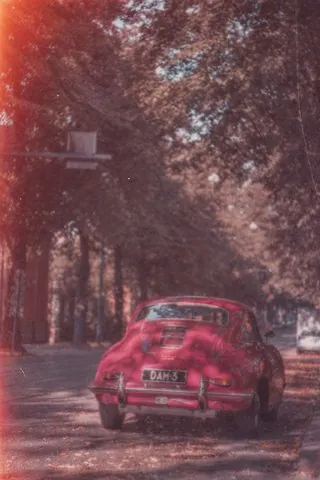
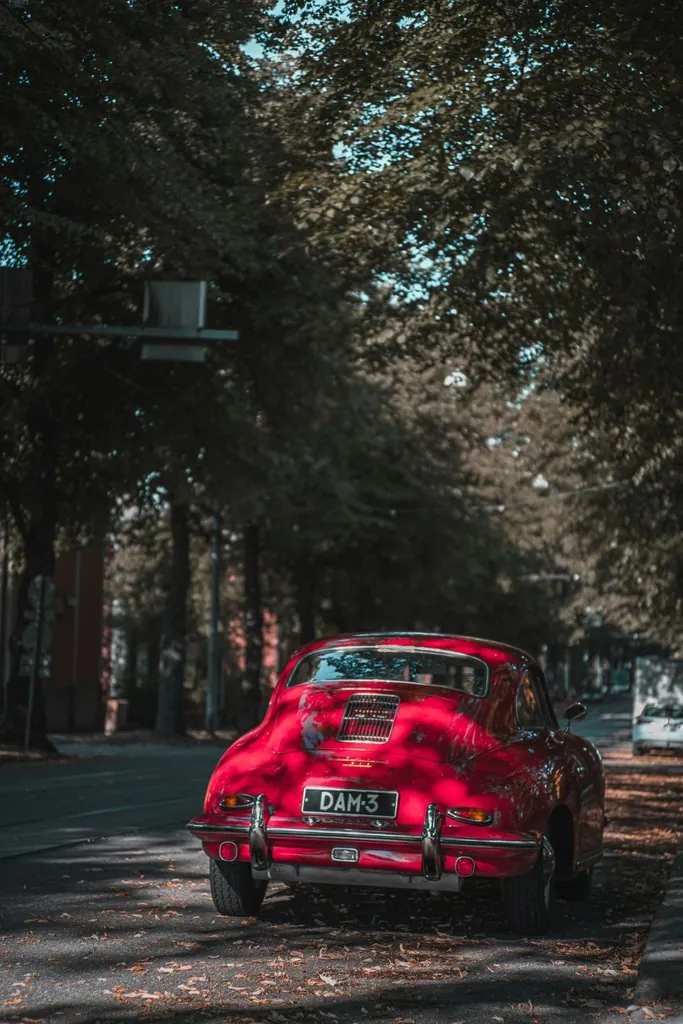
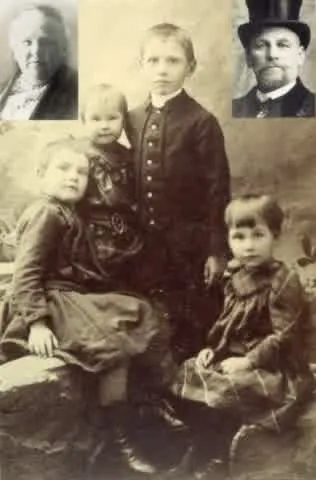
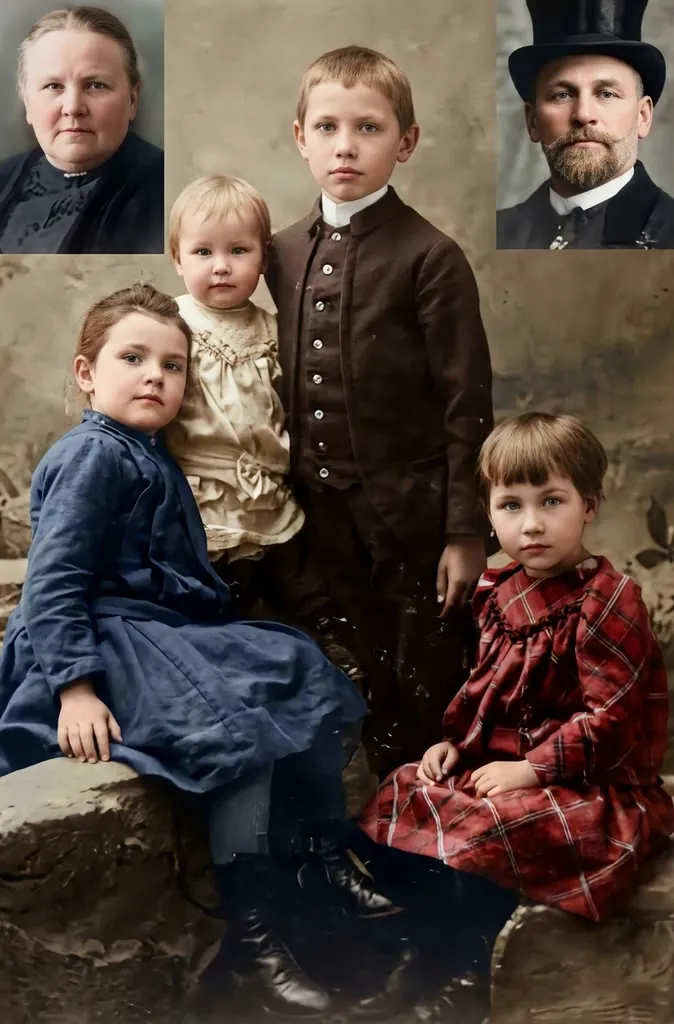
Old Photo Restore - Before Old Photo Restore - After Before After
Old Photo Restore
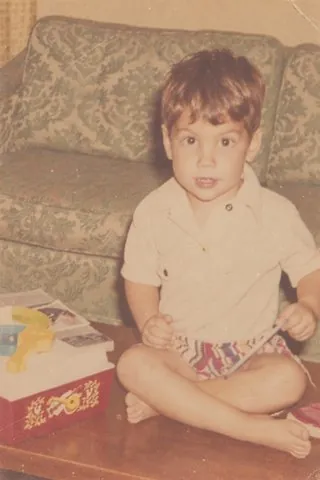
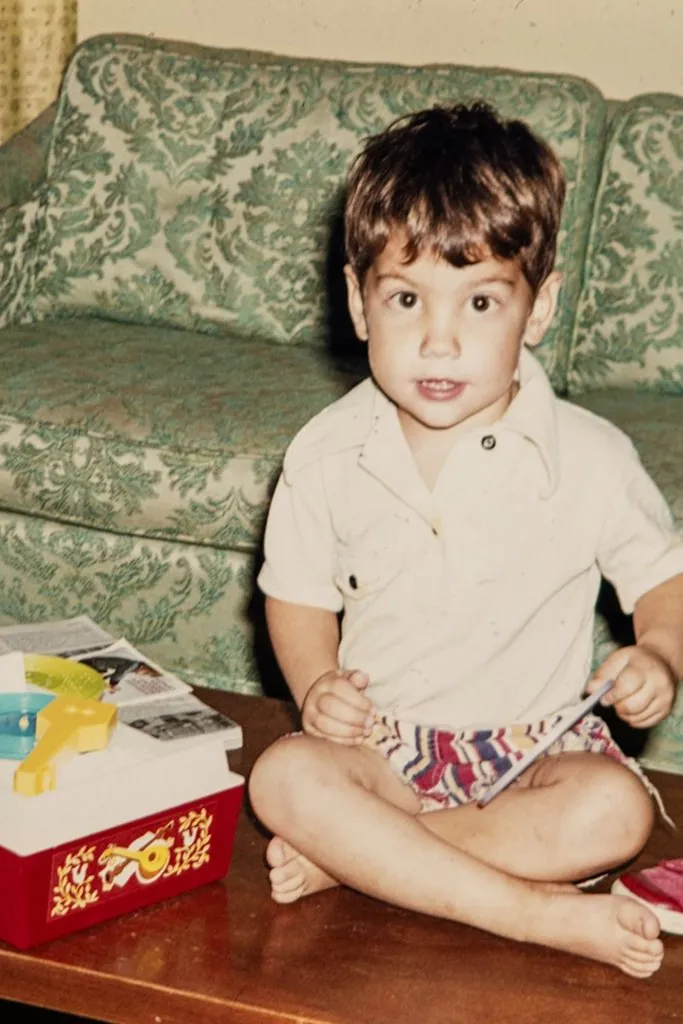
1980s Childhood Snapshot - Before 1980s Childhood Snapshot - After Before After
1980s Childhood Snapshot
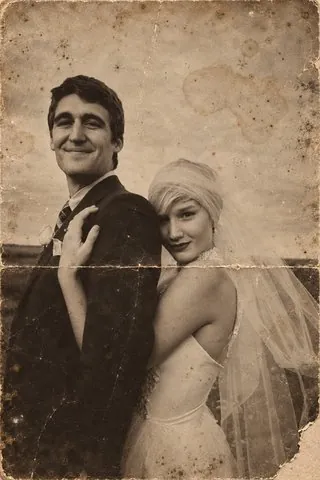
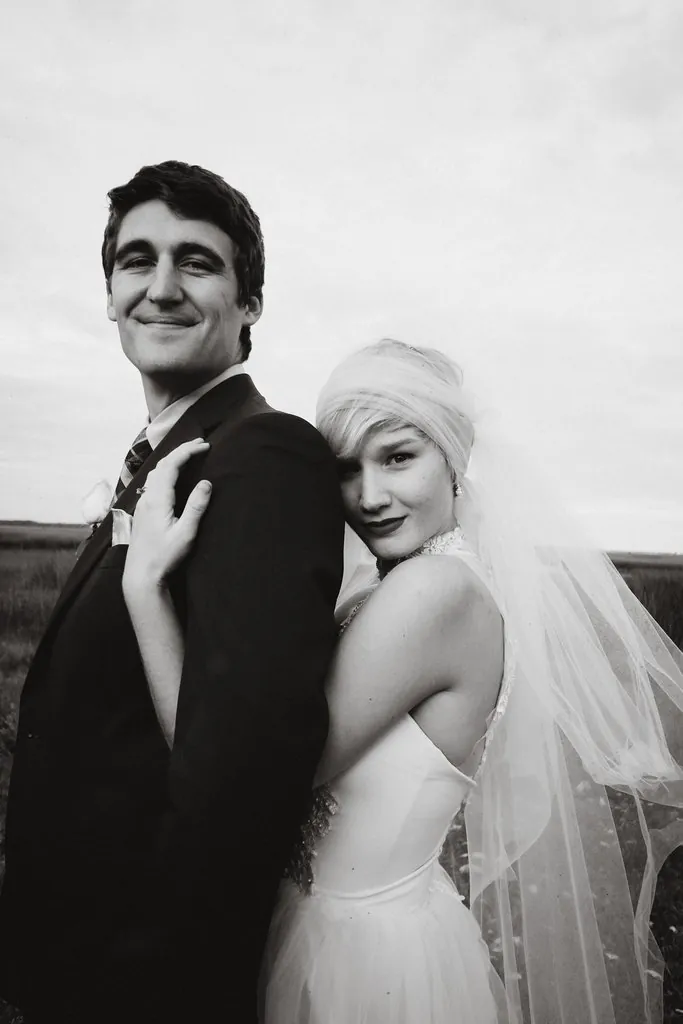
Vintage Wedding Portrait - Before Vintage Wedding Portrait - After Before After
Vintage Wedding Portrait
Faded Film Travel Photo - Before Faded Film Travel Photo - After Before After
Faded Film Travel Photo

How It Works

1
📤

Upload an old photo

Scan the print or photograph it straight on, then upload the image.

2
🎨

Choose whether to colorize

Colorize is on by default. Turn it off to repair the photo and keep its original tones, so a black-and-white photo stays black and white.

3
📥

Download the restored photo

The result appears in your task list when ready and downloads as a 2K image.

Frequently Asked Questions

It repairs scratches, tears, creases, stains, dust spots, and faded areas, and recovers sharper detail. Faces, poses, and composition are kept as they are. Each run outputs one restored photo.

Scan the print at a high resolution, in color even if the photo is black and white, or photograph it lying flat in even daylight without flash, with the camera held straight above it. Take it out of any frame or album sleeve first to avoid glare. Then upload the image, turn the colorize option on or off, and start. The restored photo appears in your task list, ready to download.

Restoration uses credits. Signed-in free accounts receive 10 free credits every day, which count toward a restoration together with credit pack credits. For occasional restorations, the Starter pack gives you 100 credits for $0.99, and pack credits never expire. Subscriptions add a monthly credit allowance for regular use, such as restoring a whole family album.

12 credits per photo, with or without colorization. The cost is shown on the button before you start, and credits are returned automatically if the run fails.

No. A black-and-white photo does not record color, so the colors of clothing, backgrounds, and other details are inferred by AI from the image content. The result looks natural, but it may differ from the original colors.

Yes. Turn off the colorize option for color photos: the scratches and damage are repaired and the existing colors are kept.

Restored photos are generated at 2K resolution, which suits sharing, viewing on screens and standard-size prints. For a larger print, upload the restored photo to Image Upscaler to enlarge it further. Starting from a sharp, high-resolution scan of the original also gives the restoration more detail to work with.

The output uses the standard aspect ratio closest to your photo. When the shapes differ slightly, a narrow strip of background is trimmed at the edges, without adding new scenery or cutting off any person. If you photograph a print lying on a table or album page, or held in your hand, only the print itself is restored. White paper borders are removed as well.

Yes, for photos you own or have permission to use. Results are kept for 30 days (7 days for free accounts). See our Terms of Service for details. No attribution is required on paid plans or credit packs; free-plan outputs require attribution to LubanAI.

Tasks are processed in the order they are submitted. Paid tasks from subscribers and credit pack buyers are picked up first. Free tasks may wait longer during peak hours.

We use cookies to improve your experience. See our Privacy Policy.